
- Good News

Aug 26,2020
How to Use Green Screen Effect on OBS
first, you need to download OBS Live in your browser or Chrome
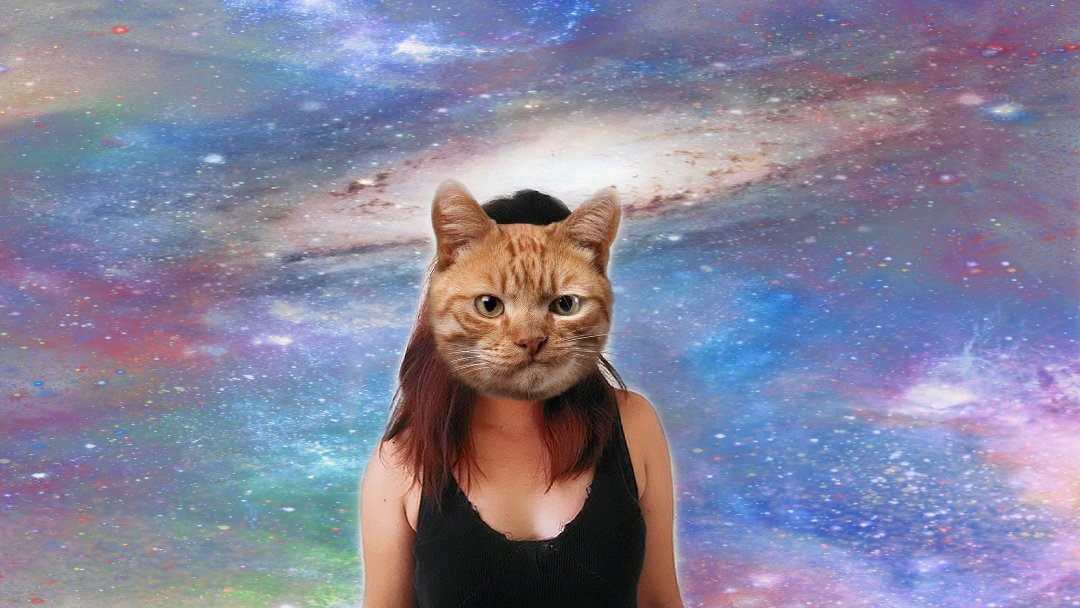
when you Finish downloading the OBS Live then CLick To Download OBS If it is done open OBS Live then (open) find the source at the bottom click this Sign (+) when you click that sign then you are going to click the (video Capture device)there comes out says (Create/select source) click (Ok) choose your Webcam name after that back find the plus sign again and click the (Image) there comes out says (Create/select source) then click (Ok) then click (Browse  Image files) then click the photo do you want to A background then right Click the Video Capture device in the source at the bottom left click the filter click the plus sign (+) find the (Chroma Key) pick what is your background green, blue, red, and etc. close then go to the chrome then search the
OBS Virtual Cam download and open  then back to OBS Live Click the Tools at the Top clicl Virtual cam start  there you have it enjoy

16 Comments
-
 Red AlbanteAug 28, 2020 05:12Nice, Keep Posting! 🙂👍 --Follow me on Instagram: Red Albante
 -
Red AlbanteAug 28, 2020 05:12Nice, Keep Posting! 🙂👍 --Follow me on Instagram: Red Albante
-
Red AlbanteAug 28, 2020 05:12Nice, Keep Posting! 🙂👍 --Follow me on Instagram: Red Albante
Check Out More Good News

Quote of the Day
Jul 18,2026


"Quezon" Official Trailer | Reaction Video
Aug 25,2025


.jpg)













Comments